
How to Compress Large PDF Files Without Losing Text and Image Quality
Published on 15 Agustus 2026
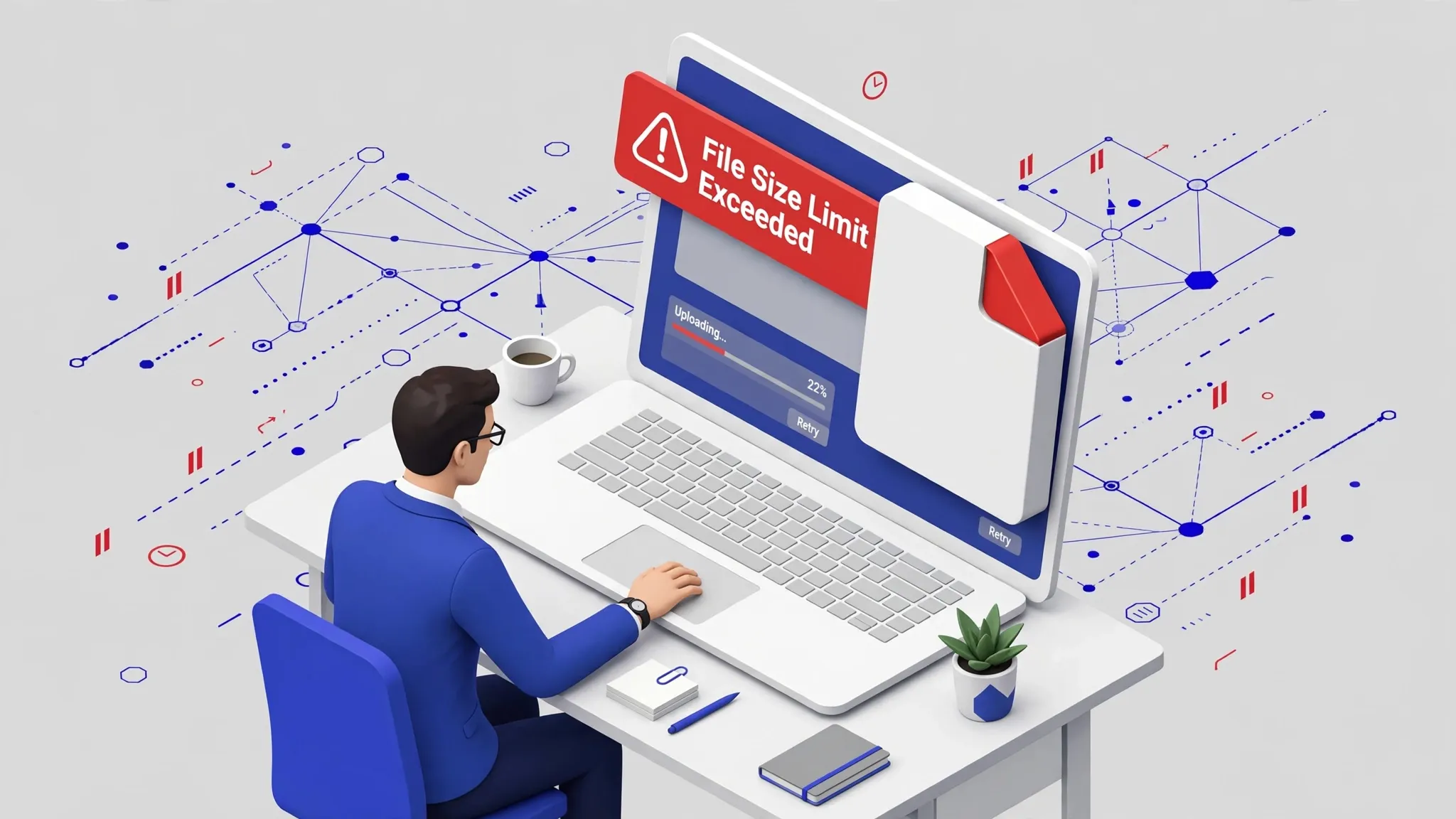
Struggling with large PDF files for email or uploads? Read our comprehensive guide on how to shrink PDF size while keeping images sharp and text crisp.
The Portable Document Format (PDF) has become the global standard for digital document distribution. From job applications and official government forms to corporate financial reports and architectural blueprints, nearly everyone relies on this format because the document layout remains identical across all devices.
However, the most frequent roadblock users face is an excessively large file size. High-resolution graphics or extensive design portfolios can easily push a document's size into dozens of megabytes (MB). The main issue is that most digital communication platforms—such as Gmail, WhatsApp, or official employment and university portals—impose strict upload limits, usually capping files at a modest 2 MB to 5 MB.
So, how can you shrink these files without compromising sharpness or turning your graphics into a blurry mess? This article breaks down the mechanics of smart PDF compression, combining technical theory with practical web-based tools and preventative design practices.
Why Are PDF Files So Large in the First Place?
Before exploring how to shrink your documents, it helps to understand what makes them bulky. Pinpointing these elements allows you to avoid identical layout errors when creating documents in the future. The primary factors include:
1. Excessive Image Resolution
Photos taken directly from smartphones or DSLR cameras typically sport a high resolution of 300 DPI or more. Embedding multiple raw images into a Word document before exporting it as a PDF will cause the final file size to balloon drastically.
2. Embedded Fonts
To ensure text renders identically on every screen, PDF compilers often embed entire font families into the file code. If you use a wide variety of custom or decorative fonts, each one adds hundreds of kilobytes (KB) to your final file budget.
3. Hidden Metadata and Design Layers
PDFs generated from professional creative software like Adobe Photoshop, Illustrator, or InDesign frequently carry background editing histories, color profiles, and hidden layout layers. While invisible to the reader, this legacy data occupies substantial storage space.
Understanding the Two Main Compression Methods: Lossy vs. Lossless
In the digital realm, file shrinking is handled by specialized compression algorithms. Knowing the difference between these two core approaches ensures you select the correct configuration for your sensitive paperwork:
Lossy Compression (Sacrificing Fine Detail)
This method trims down files by discarding subtle data points that the human eye cannot easily notice, such as stripping down complex color depth or lowering image resolution. While it yields massive file size reductions, over-compressing will make graphics look pixelated or blurry.

Lossless Compression (Retaining Perfect Quality)
This technique reduces file sizes by rewriting internal code structures more efficiently without removing a single pixel or piece of data. Your document looks 100% identical to the original, but the actual file size reduction is far more modest.
For official textual documents, resume submissions, or legal contracts, a hybrid approach—which optimizes text losslessly while applying a mild lossy pass to internal images—is the ideal strategy.
The Practical Way to Compress PDFs Online Safely and for Free
The fastest and most efficient way to bypass storage limitations is by leveraging a specialized browser-based compression tool. This saves you from installing heavy desktop software or sketchy mobile applications. Simply follow this step-by-step workflow using platforms like OraTools:
Step 1: Locate Your Document
Pastikan file PDF yang ingin dikompres berada di folder yang mudah ditemukan pada perangkat Anda.
Step 2: Navigate to a Trusted Web Tool
Open your favorite web browser and go to a secure online PDF compressor.
Step 3: Upload Your File
Click the "Choose File" button, or simply drag and drop your document directly into the designated upload zone on the web page.
Step 4: Automatic Processing
The tool will automatically analyze the structure, strip out unnecessary file metadata, and downscale images to optimal viewing resolutions. This step generally takes only a few seconds.
Step 5: Download the Compact File
Once processed, the screen will present a comparison of your original and newly reduced file sizes. Click "Download" to save the optimized, lightweight PDF to your device.

Data Privacy: Keeping Your Documents Secure When Using Online Tools
It is perfectly natural to worry about privacy when uploading personal documents like national ID cards, diplomas, or corporate balance sheets to the internet. Maintaining strict data caution is highly encouraged when dealing with sensitive information.
To guarantee your personal data stays safe, make sure to use platforms that enforce strict user-privacy structures like OraTools, which runs on an automated data deletion framework. Always look out for these three essential safety metrics:
*The platform must be protected by HTTPS encryption, verified by a padlock icon in your browser's address bar.
*The service agreement must clearly guarantee that all processed files are completely purged from their hosting servers within an hour of completion.
*The provider must explicitly state that your documents will never be indexed, analyzed, or shared with external third parties.